The sample store.
This is the Visendri app with one model store and example numbers. Click through the three products, one screen each. Nothing on this page is a result from a real store.
Model store, 4 cameras
Caffelytics
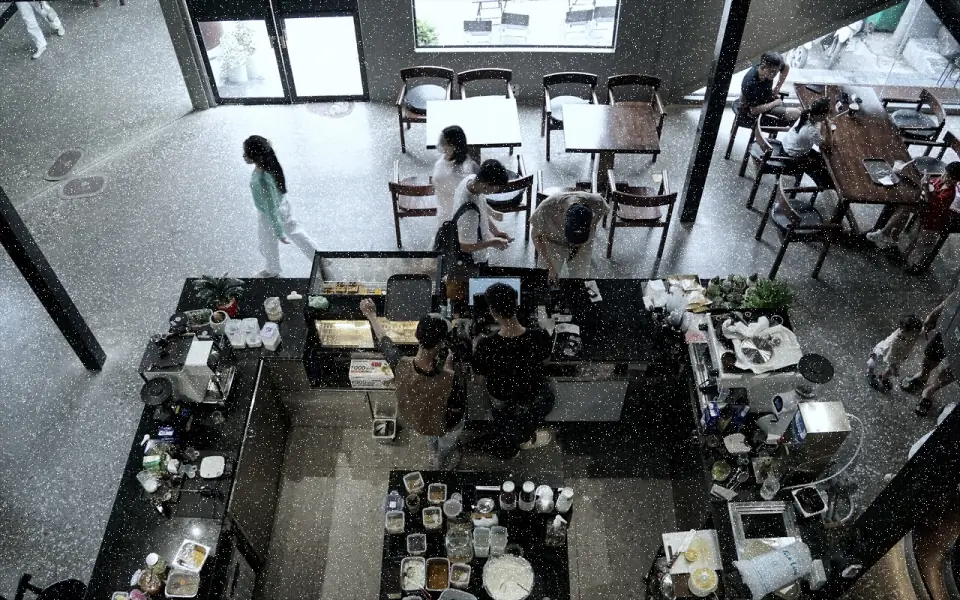
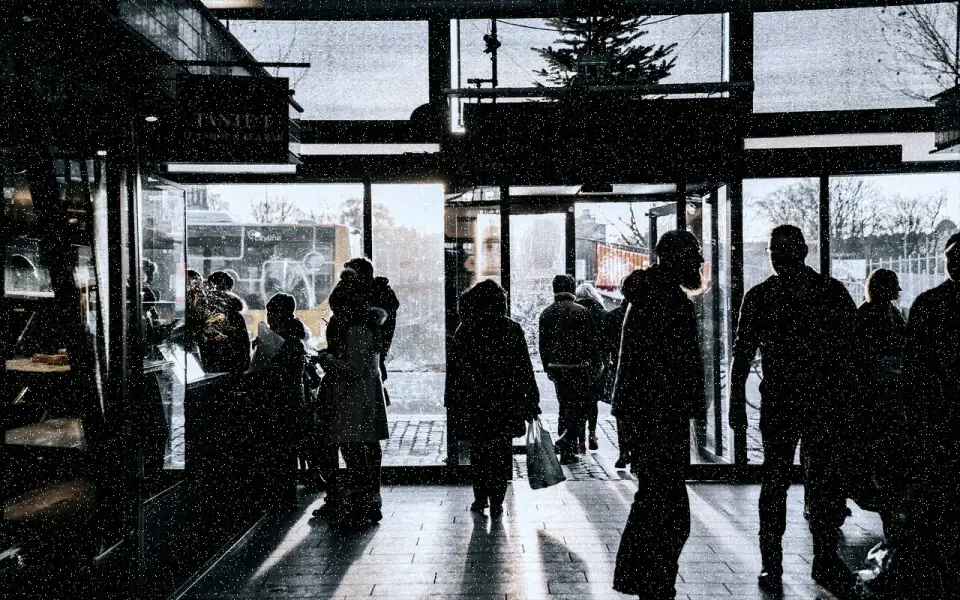
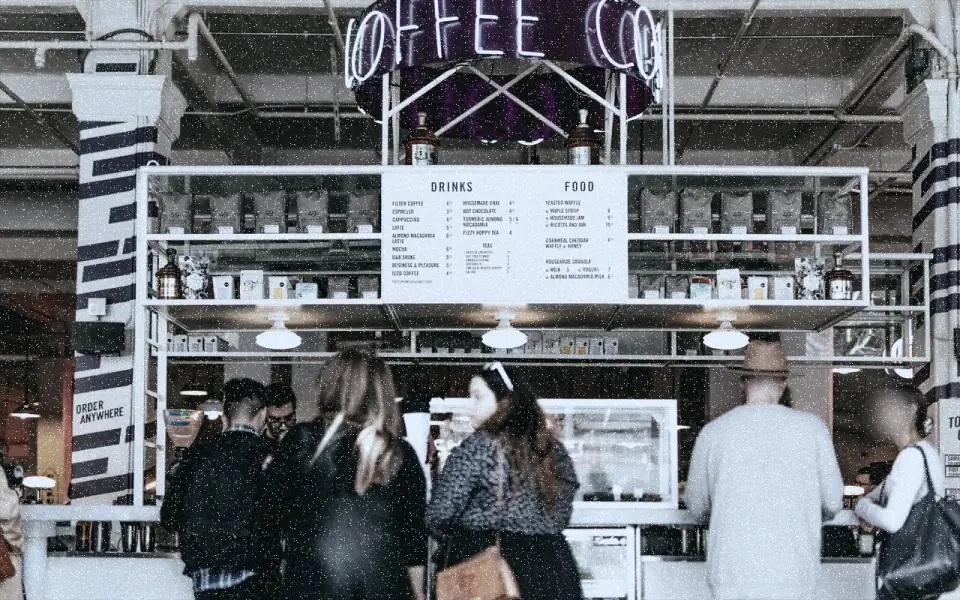

Four things to look at on the Caffelytics screen.
LiveFor cafés and restaurants. It shows how long the line is, how long people wait to order and how many walk out.
The zone on CAM 03 Counter
This is the waiting area, drawn in front of the counter. Anyone who stands in it for 3 seconds counts as in the line. Its tag, Line · 4, gives the count.
In line now, and the wait to order
Four people are waiting. The wait to order reads 03:12, which is three minutes and twelve seconds. In the app both numbers are live: they change as the line does.
Walkouts today
Seven people joined the line and left before they reached the counter. Your POS has no record of them, because they never paid.
The wait, hour by hour
The chart under the numbers shows how long people waited to order, hour by hour. The tallest bar is solid, so the slowest hour stands out.
These numbers are read from the screen above. They are examples, not counts from a store.
Retailytics
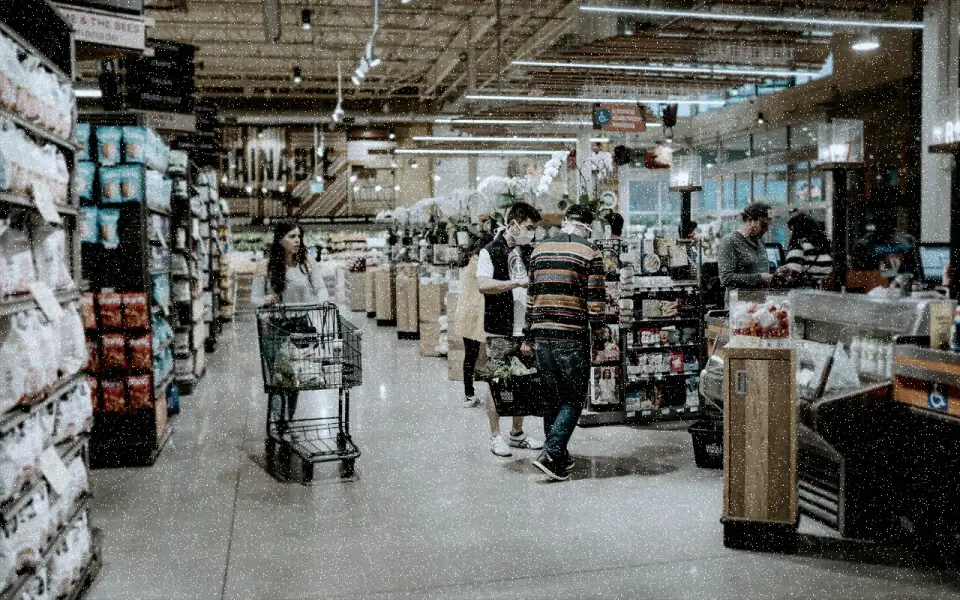
Four things to look at on the Retailytics screen.
LiveFor retail floors. It counts who comes in, where they go and what they stop at.
Entries today, and in store now
So far today 212 people have come through the door, counted on CAM 01 Entrance. Nine are inside at this moment. Both counts include your staff.
The promotion shelf on CAM 02 Floor
It is the small shelf at the front of the picture, with a zone drawn around it and the tag Promotion shelf. Of the 45 people who passed the shelf, 14 stopped. A stop is 8 seconds or more inside the zone.
The picture marked Floor map · today
It shows the store from above, shaded where people walked today. It never draws one shopper’s whole route, because Retailytics follows a person inside one camera’s picture only.
Entries, by hour
The chart shows when people came in. The tallest bar is solid. That is the busiest hour, the one to check your staffing against.
These numbers are read from the screen above. They are examples, not counts from a store.
Losslytics
Four things to look at on the Losslytics screen.
Early accessFor any store where stock goes missing. It flags theft risk and keeps the clip of each alert.
The zone on CAM 03 Counter
It is drawn around a tray on the counter. Its tag reads Tray · out 5, back 4: five items went out to a customer and four came back.
One open alert
Counter 2, at 14:02: out 5, back 4, with an 8-second clip. It is marked Review because nobody has watched the clip yet.
Reviewed, no action
At 11:47 someone stayed a long time at shelf 3. A person watched the clip and took no action. Every alert is a lead, not a verdict.
After hours
The last line is the overnight check. It reads no movement, which means the cameras saw nothing move in the store after closing.
These numbers are read from the screen above. They are examples, not counts from a store.
What the sample store leaves out.
Your own cameras, your own zones and your own numbers. That is what the pilot is for.
Your own cameras
The model store has four cameras, placed to give clear views. Yours are where your installer put them. Before a pilot you send one screenshot from each camera, and we tell you which views work as they are.Your own zones
The zones on these screens were drawn for the model. In a pilot we draw yours with you, on your own camera pictures: the line, the counter, the door. If a camera moves later, you redraw the zone yourself.Your own numbers
Every figure on this page is an example. A pilot counts what happens in your own store, for a length we agree with you. At the end of the pilot you get the findings stated in money.
Pilot
Try it on your own cameras first.
No cost, and set up in one day.
Free, on the cameras you already have, and set up in one day. At the end of the pilot you get your findings in money and a price, and you decide.
- Day 0: a call and one screenshot per camera
- Day 7: your first-week report
- Never a paid plan without your written yes